This document describes the Lunch Ordering App with the Shopping Cart feature enabled, where users (parents and teachers) will need to pay online in order to submit lunch orders to the school.
- Configure Meals
- Mark-Up
- Configure Calendar
- Order Lunches
- Order Fulfillment
- Order History
- Customer Orders
- Summary Reports
Installing the App
This app requires that the “Shopping Cart (Beta)” app be installed and enabled, in conjunction with the existing Lunch Ordering app. Online Payments should also be enabled.
Configure the Lunch Ordering App
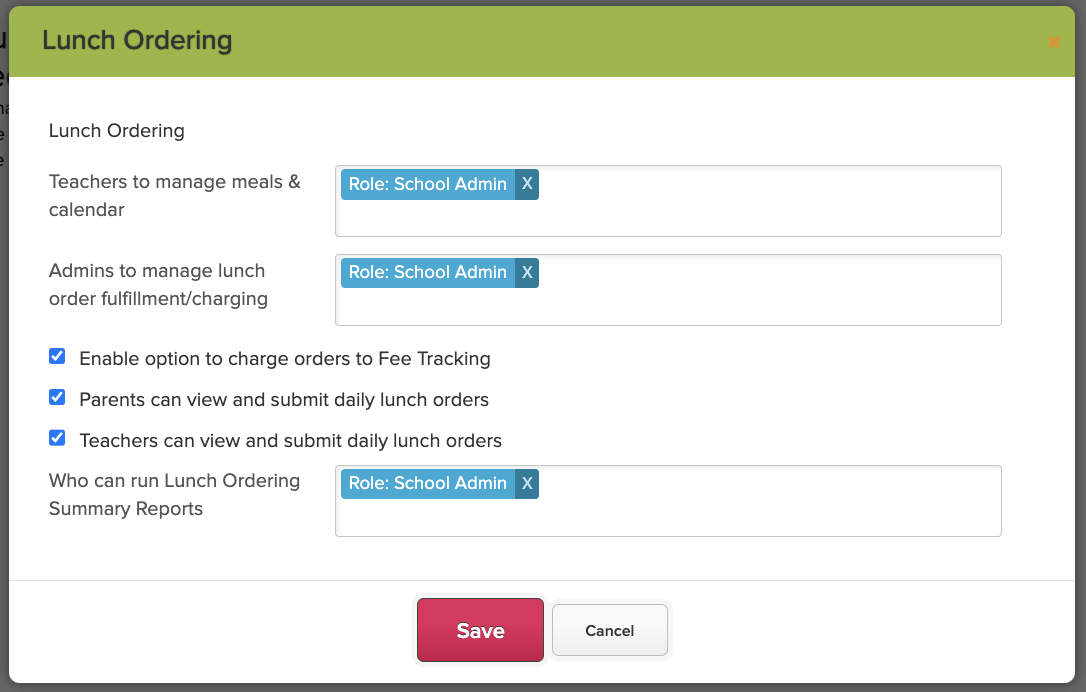
To enable Lunch Ordering tab for parents and teachers, go to App Store > Configure Lunch Ordering App > enable “Parents can view and submit daily lunch orders” and “Teachers can view and submit daily lunch orders”:
Configure the Shopping Cart (Beta) App
The shopping cart app will need to be enabled by QuickSchools support. Once enabled, you can install and configure the app:
Configure Meals
Use the “Configure Meals” menu to set up all meals that will be offered at your school:
Meal Size
You can set the Meal Size for your meal. This is purely for informational purposes (See “Summary Reports” under “Order Fulfillment”). You can then set a different cost based on the meal size:
If you need additional options for the Meal Size, please contact the QuickSchools support team.
Grade Levels
You can configure certain meals to be available to certain grade levels. Leaving this field blank will enable the meal for ALL USERS, including teachers and staff:
Available For
You can configure if a meal is available for Teachers, Students (via Parent Portal) or for All Users via the “Meals Available For” field:
Mark-Up
This function allows the administrator to mark up the price of meals that were ordered after a specific date.
Configure Mark-Up
You can use the “Configure Mark-Up” screen to set the parameters of the mark-up.
Apply Mark-Up
When a user orders a meal AFTER the mark-up date, the meal price automatically reflects the mark-up price.
Configure Calendar
Use this screen to determine which meals to offer for which days. Simply click in the box for a day, and select the meal to offer for that day.
Release Day
When meals are added to a day, it is considered in “Draft Mode”, and will not be visible to users. Once the menu for that day has been finalized, click on “Release Day”.
Cancel Day
Once the menu for a day has been released, you can undo this by clicking “Cancel Day”. Note however that this does NOT cancel any orders that have been submitted for that day. In these cases, you will need to cancel the orders (See “Order Fulfillment”).
Set Lunch Day Label
Administrators can set lunch day labels such as school holidays and other special occasions.
For holidays that do not require lunch orders, clicking the “Release Day” button without adding menu options will show the “No Lunch Today” note on the parents’ and teachers’ portal.
Order Lunches
Once the lunch menus have been released, users can begin ordering lunches from their portal.
For full description of the ordering process for users, please refer to the following article: Ordering Lunch Online (For Parents)
The ordering process for teachers is similar to parents, EXCEPT that teachers do not need to select a student first. The Lunch Calendar will appear right away. For more information, check out this link: Ordering Lunch Online (For Teachers)
Order Fulfillment
Once orders have been submitted, you can review orders via the “Order Fulfillment” screen:
The screen shows you the number of orders to provide for any given Lunch Day.
Viewing Orders
You can click on “Manage Student Orders” or “Manage Teacher Orders” to view orders for a specific day:
Student Orders
Teacher Orders
Editing Lunch Orders
Administrators are able to Edit Lunch Orders by adding or removing meals from the order.
|
NOTE: To change a meal, add a new meal first before removing the old one. |
When the lunch order is edited, credit is automatically adjusted based on the price of the meals. In some cases, if the order being edited causes a deficit in the available credit, the user will need to pay for that deficit in their next order.
Fulfilling Orders
Once orders have been fulfilled, administrators can simply click on the “Fulfill” button. This will update the status of the Lunch Orders.
Bulk Cancelling Orders / Meals
As an administrator, you can use the “Cancel” button to (1) cancel ALL orders for that day, (2) cancel orders for a specific grade level, or (3) cancel a specific meal:
In all cases, when an order or meal is cancelled, a credit is applied to the parent/teacher, to be applied on their next purchase.
Cancel lunch by grade level
Cancel lunch for the whole school
Bulk Cancel Meal
This function is reserved specifically for Administrators, where a specific meal is no longer available and needs to be removed from the menu for a specific lunch day. Admin will simply need to select the “Specific Meal” option for the “Cancel” function under “Order Fulfillment”:
Cancellation History
Similar to Bulk Lunch Cancellations, the system will display a history of Meal Cancellations. The administrator will be allowed to “Undo” ONLY the most recent bulk cancellation.
Order History
Users can use the “Lunch Orders” screen to review all previously ordered lunches, including cancelled lunch orders:
Note: Administrators will have the ability to select a user, and review the Lunch Orders for that user.
Cancel Lunch Order
When users cancel a Lunch Order, the user is cancelling ALL MEALS for that day. The order is marked as cancelled, and a credit is applied:
If the user makes a mistake, the user can “Undo” the lunch cancellation. Any applied credit is then reversed.
Customer Orders
Administrators have the ability to select a user, and review the Lunch Orders for that user. They can also perform actions such as:
- Cancel Lunch Order
- Undo Lunch Order Cancellation
- Add Order
- Adjust Credits
Summary Reports
You can also use the “Summary Reports” to review submitted orders:
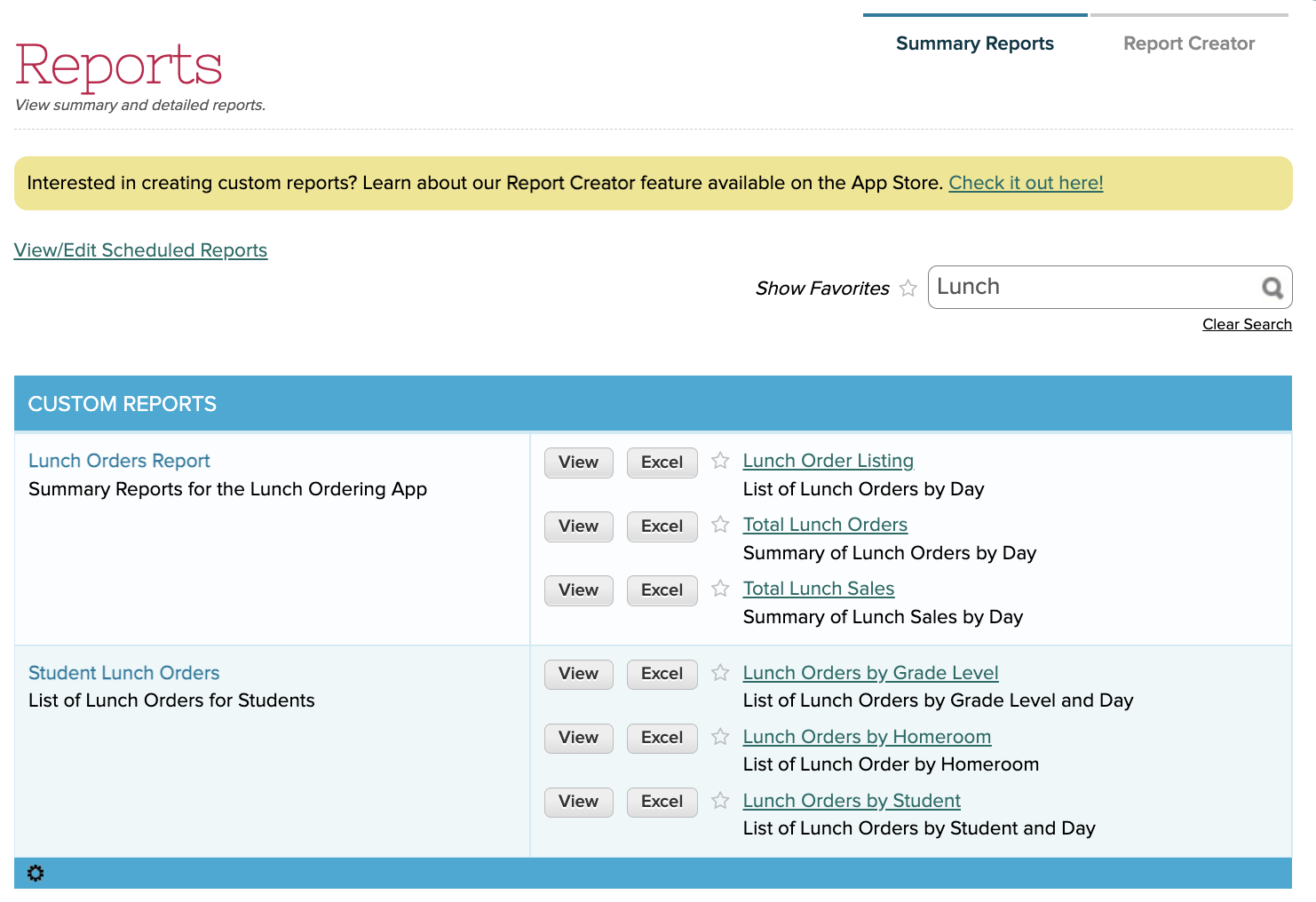
We have several formats for different scenarios. Other reports you can also check out are:
- Lunch Orders TODAY
- Student Lunch Orders TODAY
- Teacher Lunch Orders
- Teacher Lunch Orders TODAY
- Pending (Unsubmitted) Student Lunch Orders
R23MR0227